
Log Your Dose and Reconcile Low-Appetite Days
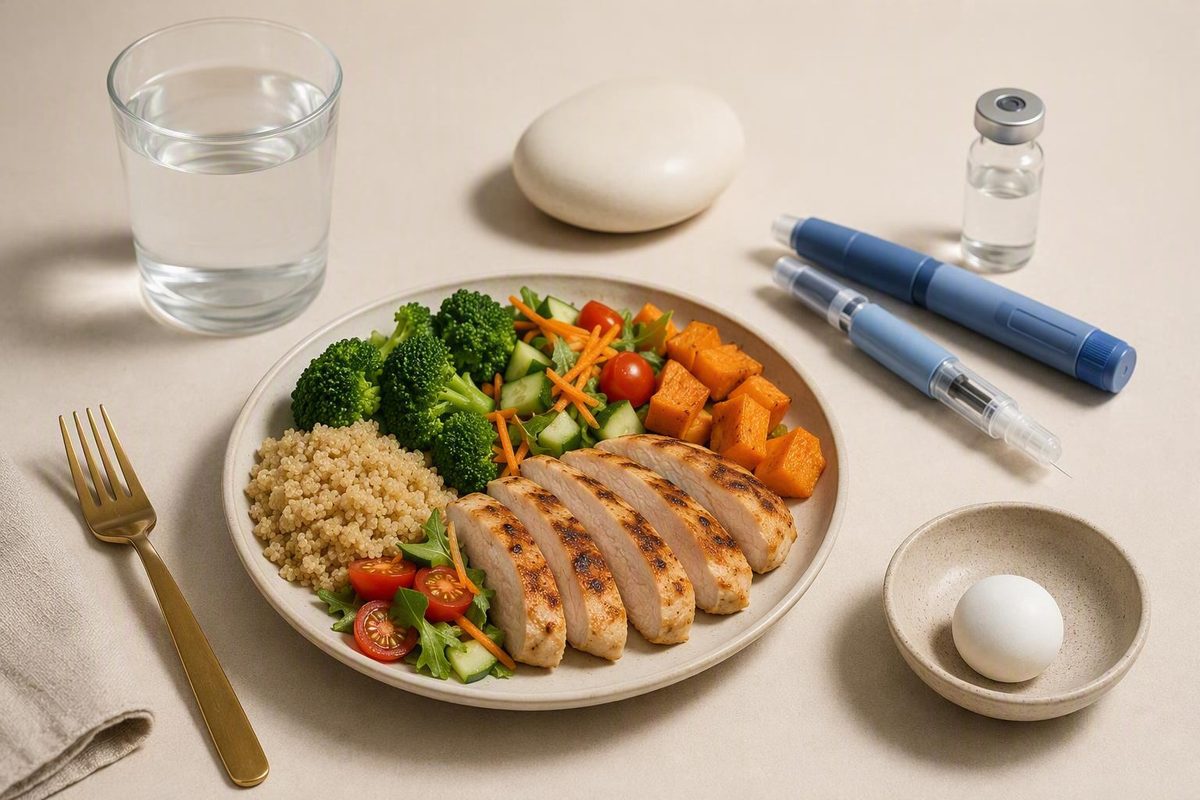
Find MyFitnessPal’s GLP-1 logger, check dose details and side effects, then calculate the calories and protein still missing from your food diary.
To log a GLP-1 in MyFitnessPal, open the mobile app and tap the GLP-1 tracker above your meals, or tap the blue + button and choose the GLP-1 medication logger. Check the medication, dose in milligrams, date, time and injection location before tapping Save. This records the dose details you enter; it does not add food, calories or protein, so those still belong in the regular food diary.
If the tracker is not enabled, tap More in the bottom-right corner. If More is absent, tap the Profile icon in the upper-right corner. Select GLP-1 Support and complete setup.
Choose your device and location for a personal setup checklist, then enter your meals to reconcile calories and protein.
First check whether your app setup is documented as supported. Then enter the calories and protein from each meal exactly as they appear in your food diary.
1. Check Access and Get Your Steps
- Look above the Today screen’s meal entries for an existing GLP-1 tracker.
- If absent, open More; if More is absent, open the Profile icon.
- Select GLP-1 Support and enter your brand, last dose, date and injection location.
- Open the logger from the tracker or the blue + button.
- Check medication, milligram dose, date, time and injection location before Save.
- Enter meals separately; medication logging does not add calories or protein.
A paid plan is not documented as necessary to unlock GLP-1 Support.
2. Reconcile Calories and Protein
No target is assumed. Use only a target you already follow.
| Diary Section | Calories Logged | Protein Logged, g |
|---|---|---|
| Breakfast | ||
| Lunch | ||
| Dinner | ||
| Snacks | ||
| Calorie-Containing Drinks | ||
| Other Entries or Corrections |
Documented Availability Matrix
| Country | Platform | English | Documented Status |
|---|---|---|---|
| United States | iOS app | Yes | Supported |
| United States | Android app | Yes | Supported |
| Canada | iOS app | Yes | Supported |
| Canada | Android app | Yes | Not documented as supported |
| United States or Canada | Website or desktop | Yes | No documented web workflow |
| United States or Canada | Any listed platform | No | Not documented as supported |
| Another country | Any platform | Any | Not documented as supported |
Source: MyFitnessPal GLP-1 Support documentation and its April 28 and August 25, 2026 announcements. Meal values and targets are supplied by you; no calorie or protein target is assumed.
Enable GLP-1 Support Before Logging
GLP-1 Support may already be active if you indicated during account setup that you take or plan to start a GLP-1 prescription. Check above the meal entries on the Today screen before trying to enable it again.
If it is not visible, use either documented route:
- Tap More, then GLP-1 Support.
- If there is no More menu, tap the Profile icon, then GLP-1 Support.
The different routes reflect variations in the mobile interface. Seeing a Profile icon instead of More does not by itself mean the feature is unavailable.
Initial setup asks for your prescription brand, last dose, date of that dose and injection location. Copy those details from your prescription, medication packaging or existing record. Do not select a medication, dose, schedule or injection location from another person’s entry.
If you have not taken a first dose, do not invent previous-dose details to complete setup. Ask MyFitnessPal Support about a setup flow that does not fit your circumstances. Medication questions belong with your prescriber or pharmacist.
GLP-1 Support is the medication-logging feature. It is not the same as nutrition articles, recipes, lessons or a GLP-1 Nutrition Plan. Logging a meal, exercise, hydration, weight, body measurement or meal time does not create a medication entry.
Check All Five Dose Fields Before Saving
Once GLP-1 Support is configured, use this sequence:
- Tap the tracker above your meals, or tap the blue + button and select the GLP-1 medication option.
- Check the displayed medication or brand.
- Confirm the dose in milligrams.
- Select the correct calendar date.
- Correct the time when it differs from the displayed current time.
- Check the injection location rather than accepting it automatically.
- Tap Save.
The medication brand and injection location from the previous record may already appear. The time defaults to the current time. These defaults are convenient for a repeated routine but can create an inaccurate record when anything has changed.
For example, if you open the logger at 8:30 p.m. to document an injection given at 6:00 p.m., the time may show 8:30 p.m. because that is when you opened the logger. Replace it with the time the record should show.
The dose field supports milligrams. Do not improvise a conversion to make differently expressed information fit. Confirm unclear prescription information with your prescriber or pharmacist.
After saving, return to the intended date on the Today screen. Confirm that the entry appears once and contains the details you meant to record. MyFitnessPal’s official GLP-1 Support instructions cover setup, dose logging, reminders, side effects and the feature’s limitations.
A saved entry documents information entered into the app. It does not prove that a dose was administered, confirm that it matches a prescription or establish that the dose, timing or injection location was appropriate.
Food, Calories and Protein Remain Separate Entries
The Today screen can place medication information near meal entries, but the records remain operationally separate. Saving medication does not complete the food diary, and logging food does not create or verify a medication record.
On reduced-appetite days, log each food and drink in the ordinary meal sections. The GLP-1 logger does not automatically supply calories, protein or other nutrient values for what you consumed. If the food diary is incomplete, its daily calorie and protein totals will also be incomplete.
A useful reconciliation sequence is:
- Enter every meal, snack and calorie-containing drink in the food diary.
- Review the diary’s calorie and protein totals.
- Compare those totals with the targets you use.
- Check for omitted items when the totals do not match what you remember consuming.
- Keep the medication entry separate from any food correction.
The calculator above totals meal-level calories and protein from values you provide. It can also show the amount remaining against optional targets and calculate grams of protein per 100 calories. The supplied product materials do not provide a universal calorie or protein target, so none is assumed here.
Do not enter invented food amounts to make the diary reach a target. The arithmetic can identify a gap, but it cannot determine what you ate or prescribe what you should consume.
Edit the Original Entry Instead of Creating a Duplicate
To correct a logged dose:
- Use the date picker at the top of the screen.
- Open the date containing the record.
- Tap the medication entry above the meals, or choose GLP-1 medication from the blue + menu.
- Select Edit Medication Log.
- Correct the relevant fields.
- Tap Save Changes.
- Reopen the dated screen and inspect the result.
To remove a record, navigate to its date, open the medication entry and select Delete Log. Confirm that you opened the intended date and record before deleting it.
An incorrect time, dose or location should normally be corrected in the original entry. Leaving the incorrect record in place and adding another can make the history ambiguous.
Future Entries Do Not Confirm Administration
MyFitnessPal allows future-dated medication entries. Use the date picker to move to the intended future date, open the medication logger, enter the information and save it.
A future entry is an organizational record. It does not confirm that the medication was administered when that date arrived. The documented controls also do not establish a completed, missed, skipped or delayed status for that entry.
Check the medication, milligram dose, date, time and injection location whenever you create or edit a future record. Then inspect the selected date to ensure that you edited the intended entry rather than creating a duplicate.
Reminders and Side Effects Use Separate Tools
A medication log, reminder and side-effect record perform different jobs:
| Tool | What It Records or Does |
|---|---|
| Medication log | Stores the medication details you enter |
| Reminder | Prompts you on a selected dose day and time |
| Side-effect record | Stores information entered through the Side Effects card |
To add a reminder, tap More or the Profile icon, select Reminders, then choose Add GLP1 reminder. Company materials describe reminders as customizable for a dose day and time, but the available evidence does not establish identical recurrence, editing or deletion options across every app version.
A reminder does not detect whether you administered medication. Ask your prescriber or pharmacist about timing changes, late doses or missed doses rather than relying on the reminder system to make that decision.
For side effects, open Today and find the Side Effects card in the GLP-1 section. MyFitnessPal described side-effect tracking as limited to iOS when it announced the expanded feature on April 28, 2026, in its GLP-1 Support announcement.
Side effects are user-entered records. MyFitnessPal does not issue side-effect alerts. Contact an appropriate healthcare professional about symptoms, possible medication reactions or treatment decisions rather than waiting for an app notification.
Documented Access Depends on Country and Device
The detailed product documentation lists the following availability:
| Country | iOS | Android | App Language |
|---|---|---|---|
| United States | Supported | Supported | English |
| Canada | Supported | Not documented as supported | English |
The documentation identifies milligrams as the only supported dose unit. It describes a GLP-1 medication tracker, not a general logger for unrelated medications, vitamins or supplements.
MyFitnessPal’s August 25, 2026 Summer Release announcement described GLP-1 Support more broadly as available to members in the United States and Canada. The help page provides the narrower device and English-language conditions shown above.
The documented workflow is for the mobile app. The available instructions do not establish medication logging through the MyFitnessPal website.
If the feature is missing, confirm your country, operating system and app language. Look under both More and the Profile icon, then check whether the tracker is already active above your meals. If all documented conditions appear to match, contact MyFitnessPal Support and describe the route you tried and what appeared on screen.
Review screenshots before sending them to support and remove medication details or other personal information that is not needed to diagnose the interface problem.
GLP-1 Support Was Announced as Free
MyFitnessPal described GLP-1 Support as a free feature in April 2026. Its August announcement separately identified Free, Premium and Premium+ membership tiers, but the supplied evidence does not establish identical access to every component under every account configuration.
Do not purchase Premium solely because the tracker is missing. A paid subscription is not documented as the remedy for an unsupported country, operating system or app language. Check eligibility and both navigation routes first.
The Tracker Does Not Validate Medication Use
MyFitnessPal states that it does not verify the medication, dose, timing or whether a recorded dose was administered. It also does not alert users to missed doses, drug interactions or side effects.
That means:
- A prefilled brand is carried forward, not verified.
- A prefilled injection location is carried forward, not recommended.
- The current-time default reflects when the logger was opened.
- A future entry is information saved on a future date.
- A reminder is a prompt, not evidence of administration.
- A neighboring meal record does not confirm a dose.
- A medication record does not prove that the food diary is complete.
The tracker does not replace a prescription label, pharmacy instructions, clinical record or prescriber’s directions. Direct questions about dose changes, missed medication, interactions, injection locations or symptoms to an appropriate healthcare professional.
Company announcements describe intended benefits involving consistency, habits and side-effect awareness. The supplied materials do not independently demonstrate that using the tracker improves treatment outcomes, prevents side effects, makes medication more effective or guarantees weight loss.